Build with AI mode
AI mode adds an assistant to the designer. You describe the micro-app you want, and it builds the document in the pack you chose; you then ask for changes in plain words, edit by hand between requests, or both. The assistant works with the same components and rules as you do, and the designer checks everything it returns with import’s own check before applying it, so it can only ever give you a document you could have imported. While it works, the assistant also reads the check’s hints, such as a form input whose host error nothing shows; they guide it but never stop a result from applying.
AI mode needs Mica’s agent service running beside the designer. The hosted designer has one: sign in and it offers AI mode. To run your own, start the designer and the service from the repository, as Run AI mode locally describes. When the designer finds no service, it shows no AI mode at all and works exactly as it does without it.
Turn AI mode on
Section titled “Turn AI mode on”With the service running, the designer shows an AI button in the top bar. It swaps the component palette for the Assistant panel; press it again to get the palette back. The canvas and Properties stay where they are, and you can keep selecting and editing while the panel is open.
The panel says which pack it builds in. A document stays bound to its pack, so the assistant only ever uses that pack’s components.
Describe a new app
Section titled “Describe a new app”The pack picker, the first screen and the one New opens, has a Describe it instead section under the packs. Choose a pack, describe the app, and press Build it.
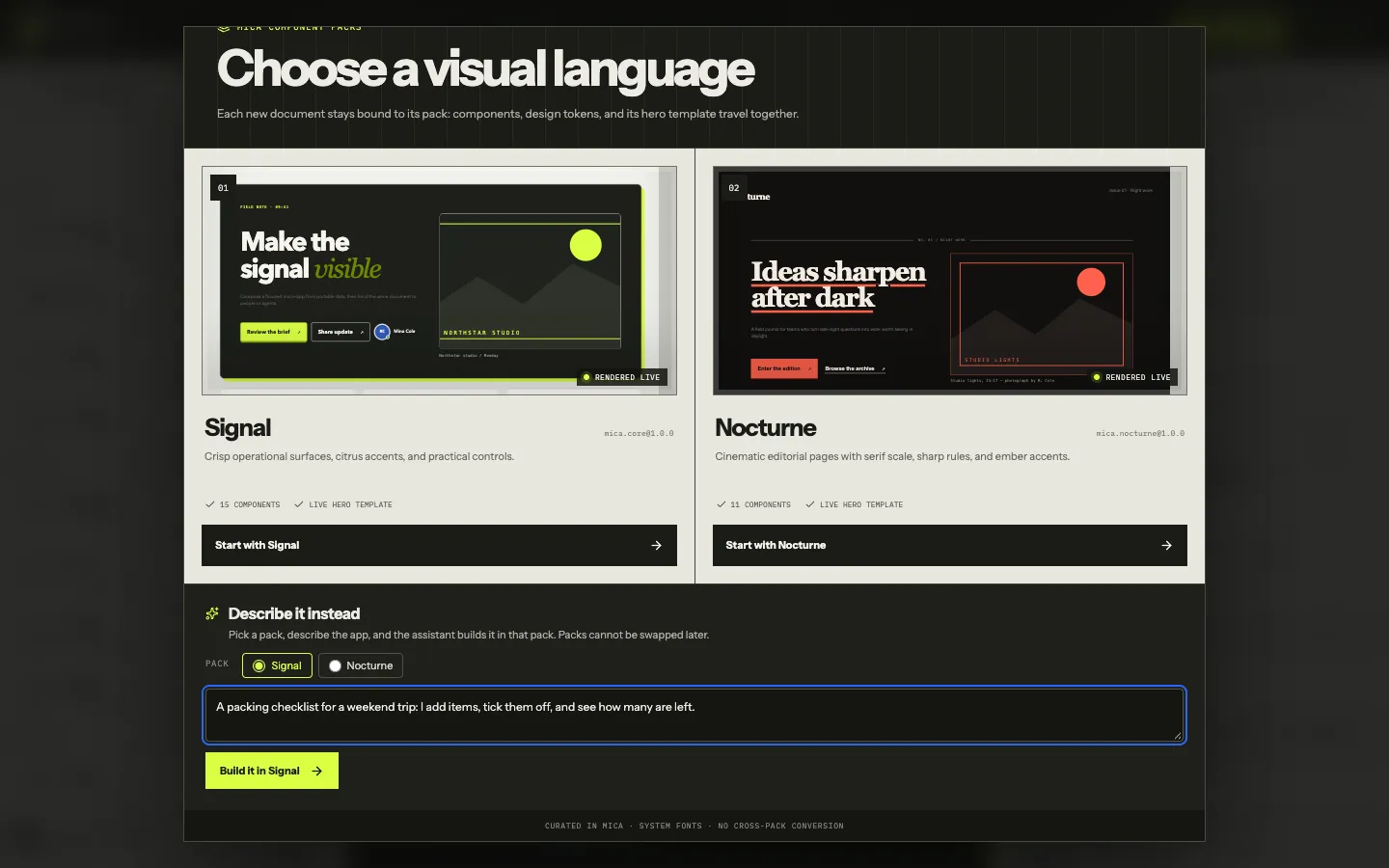
The designer starts that pack’s blank document, exactly as picking the pack would, opens the Assistant panel, and sends your description as the first request. You do not need to answer questions first: the assistant builds right away from what you wrote, makes reasonable choices for what you left open, and you adjust from there.
A description that says what people do with the app works best: what they enter, what they press, what they see change. “A packing checklist where I add items, tick them off and see how many are left” gives the assistant more to build on than “a packing app”.
While the assistant works
Section titled “While the assistant works”A request takes from a few seconds to a minute or so. While it runs:
- The panel lists what the assistant is doing, step by step: “Building page Packing list”, “Setting what loads when the app starts”, “Seeding the app’s starting state”.
- The canvas shows the draft as it grows, marked AI draft. It is read only: you can look, but not select or edit.
- Everything that would change the document waits: Properties, New, Import, Undo, Redo and Preview.
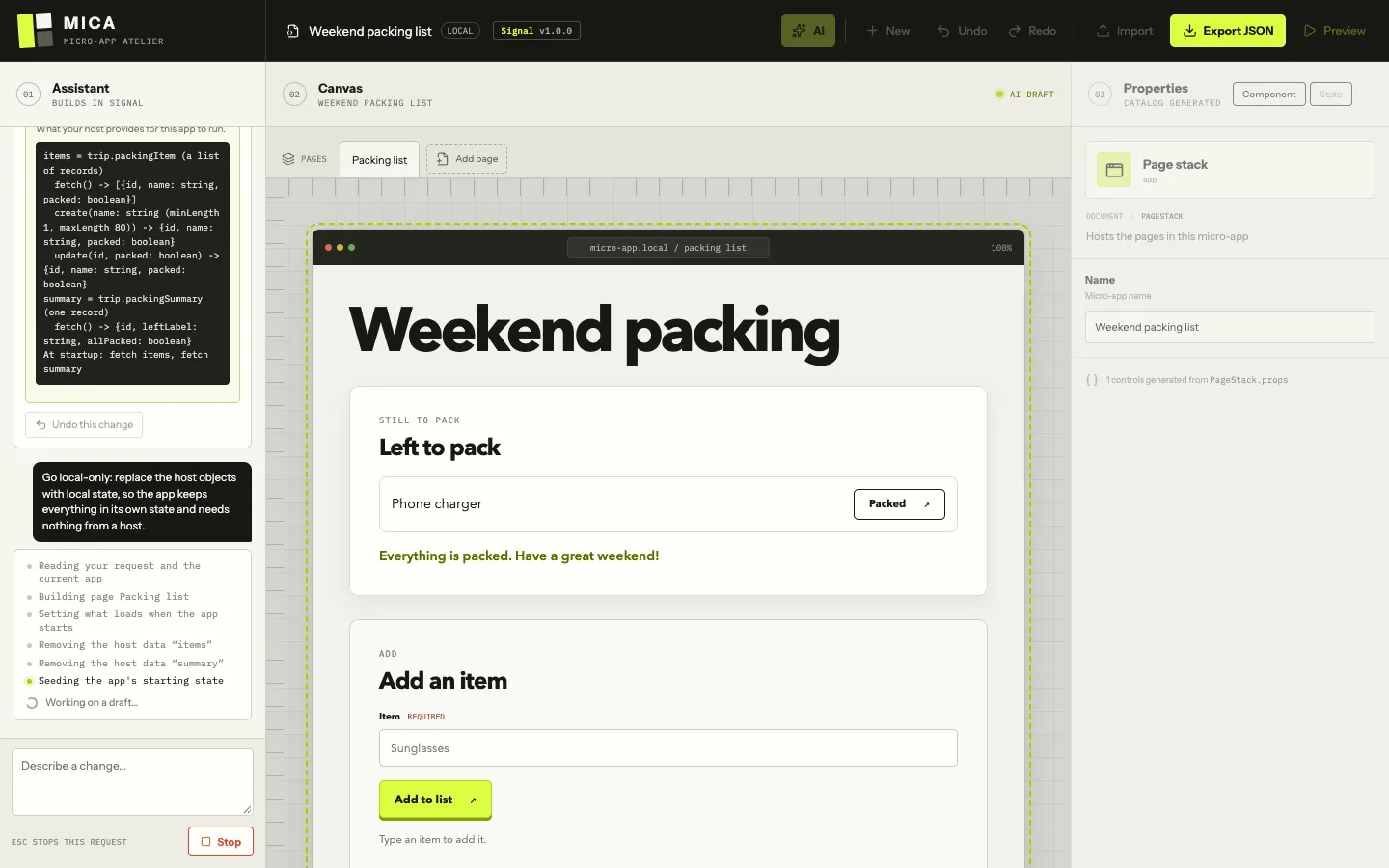
Stop, or the Esc key, cancels the request. Nothing from it is applied, and the document is exactly as it was before you sent it. Retry sends the same request again.
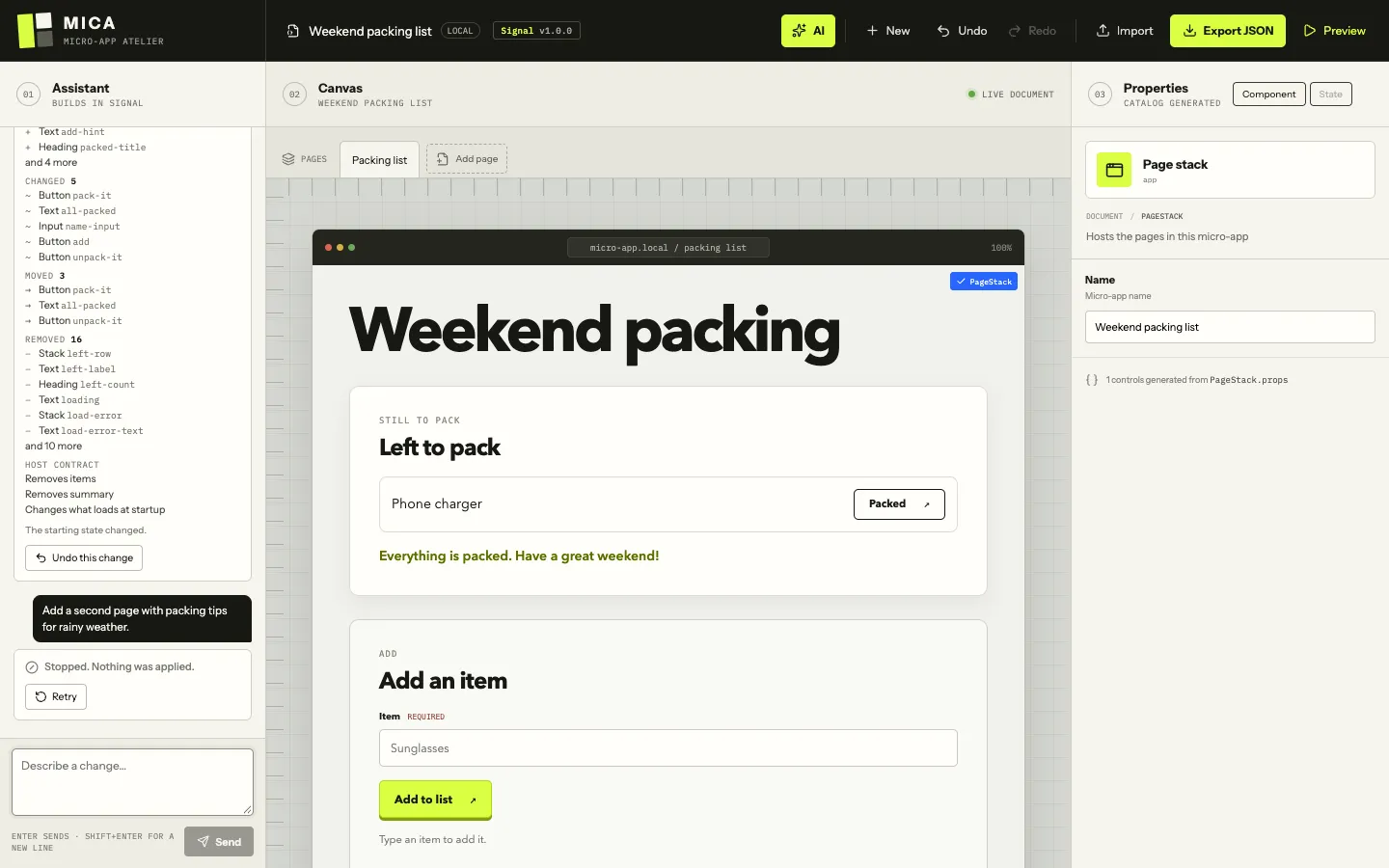
The result, and how to undo it
Section titled “The result, and how to undo it”When the assistant finishes, the designer checks the document it returned with import’s check, then applies it as one undo step. The panel shows what changed — elements added, changed, moved and removed, and changes to what the app needs from its host — along with anything the assistant wrote, such as what it assumed.
Undo this change under the result takes the whole request back in one step, as Undo in the top bar would. It stays available while that request is still your latest change. Once you edit by hand or send another request, the button steps aside and says so; the top bar’s Undo still walks back through everything in order. After an undo, Redo brings the change back.
The host contract card
Section titled “The host contract card”Some apps need data from the application they run in: a list of records the host stores, a record it loads at start, an action it performs. Mica calls that the host contract. When the assistant’s result declares one, the panel shows it as a card: which business objects the host provides, the fields and operations of each, and what loads at startup.
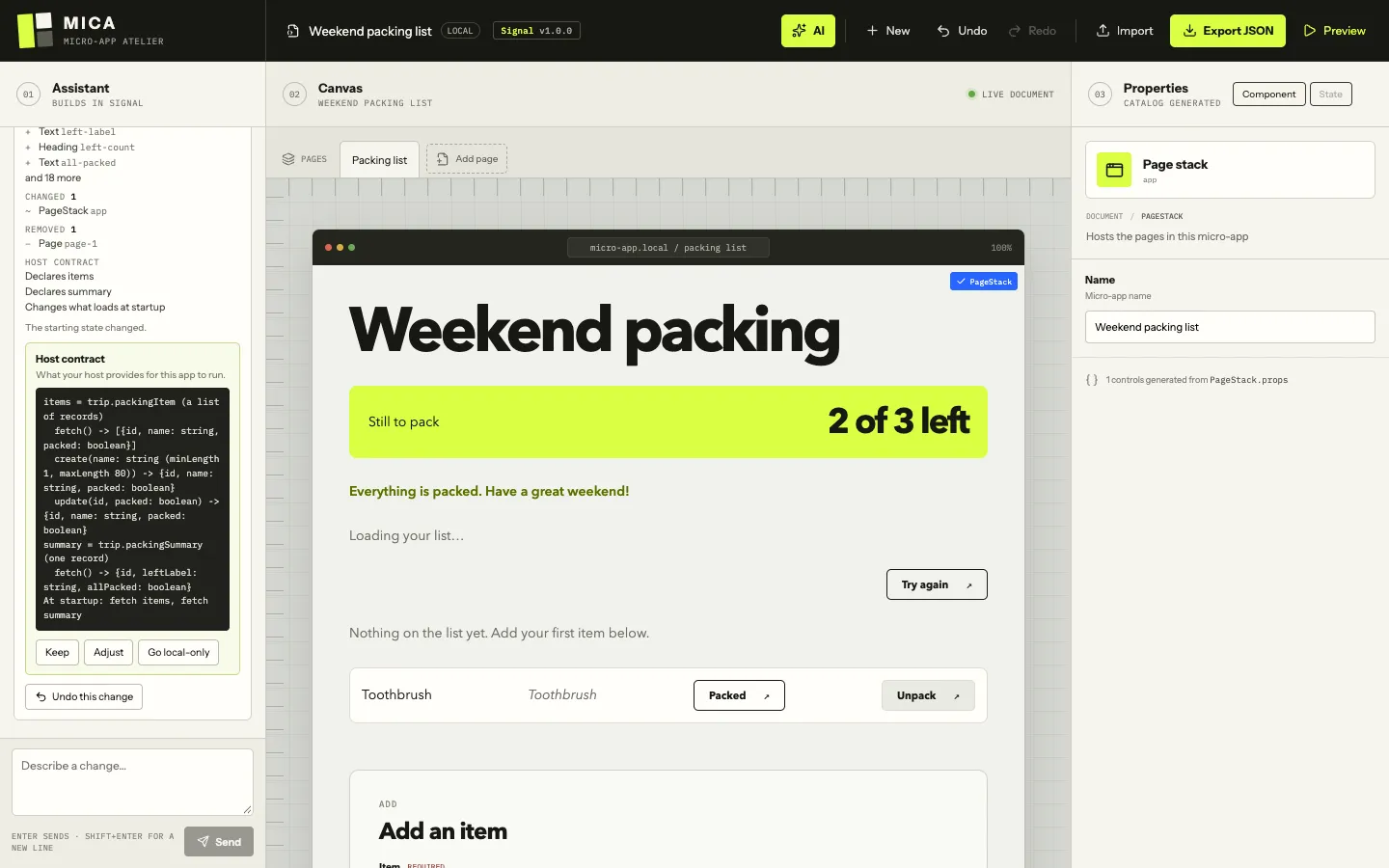
The card offers three choices:
- Keep accepts the contract as it is. A host developer implements it as Implement business objects in a host describes.
- Adjust puts the cursor in the request box so you can say what to change: “the summary can be worked out in the app”, “items also need a quantity”.
- Go local-only sends a request to replace the host’s data with the document’s own state, so the app needs nothing from a host. That suits a prototype, or an app whose data only lives while it runs.
A vague description can come back with a host contract you did not intend; the packing checklist above did. That is what the card is for: choose Go local-only, and the next result keeps the list in the document’s own state instead. Only the latest request’s card offers the choices.
Follow-up requests and your own edits
Section titled “Follow-up requests and your own edits”Every request after the first is a change to the app as it stands: “add a second page with packing tips”, “make the add button say Add to list”, “show a message when everything is packed”. The assistant keeps the conversation, so a request can refer to an earlier one.
You can edit by hand between requests, on the canvas, in Properties or in the State panel. Each request sends the document as it is at that moment, so the assistant works from your edits, not from its own last result.
The selected element is “this”
Section titled “The selected element is “this””When a component is selected on the canvas, a follow-up treats that element as this. Select the heading you want friendlier, then send “make this friendlier”: the assistant is told which element you mean, and edits that one rather than a sibling. The Assistant panel does not show which element is this; look at the canvas selection.
The turn names the selected key and type, includes that element’s JSON
(its type, props, and when present its events, Show when, repeat and
children keys), and lists the document’s references from and to it: what it
binds, reads and writes, the object and host actions it dispatches, $label
reads, and — for a Page — which buttons go to it. The assistant can inspect
that element without changing the draft.
Selection is left out of the request when it would name something the draft does not have, or is not a chosen “this”:
- First build. The document is still the pack’s blank one-page start, or has no page yet. Describe it instead / Build it is this case, so “this” is not the empty page.
- The root PageStack is selected. That is the designer’s fallback selection, not an element you chose.
- The selected key is no longer on the document — it was deleted, or the document was replaced, so the key would be stale.
With nothing selected, the turn has no selection either. A CLI authoring session has the whole file and no selection: name the element in the request.
A new conversation starts whenever the document is replaced: New, the pack picker, or Import. To keep a document and start a fresh conversation about it, export it and import it again. Reloading the page loses the conversation, along with any unexported work.
When a request fails
Section titled “When a request fails”A request can end without a result: the assistant ran out of steps before it had a document import accepts, the request went past a limit, the day’s budget is spent, or the connection to the service dropped. The panel says what stopped it, lists the remaining import problems when there were some, and offers Retry. In every case nothing is applied: your document and the conversation are exactly as they were.
The designer also refuses a result its own import check rejects, even though the service checked it too. That should not happen; if it does, nothing is applied and the panel says why.
When AI mode is unavailable
Section titled “When AI mode is unavailable”If the service is running but cannot take requests — it has no API key, or today’s budget is spent — the designer still shows AI mode, with the service’s reason in the panel and in Describe it instead, and sending turned off.
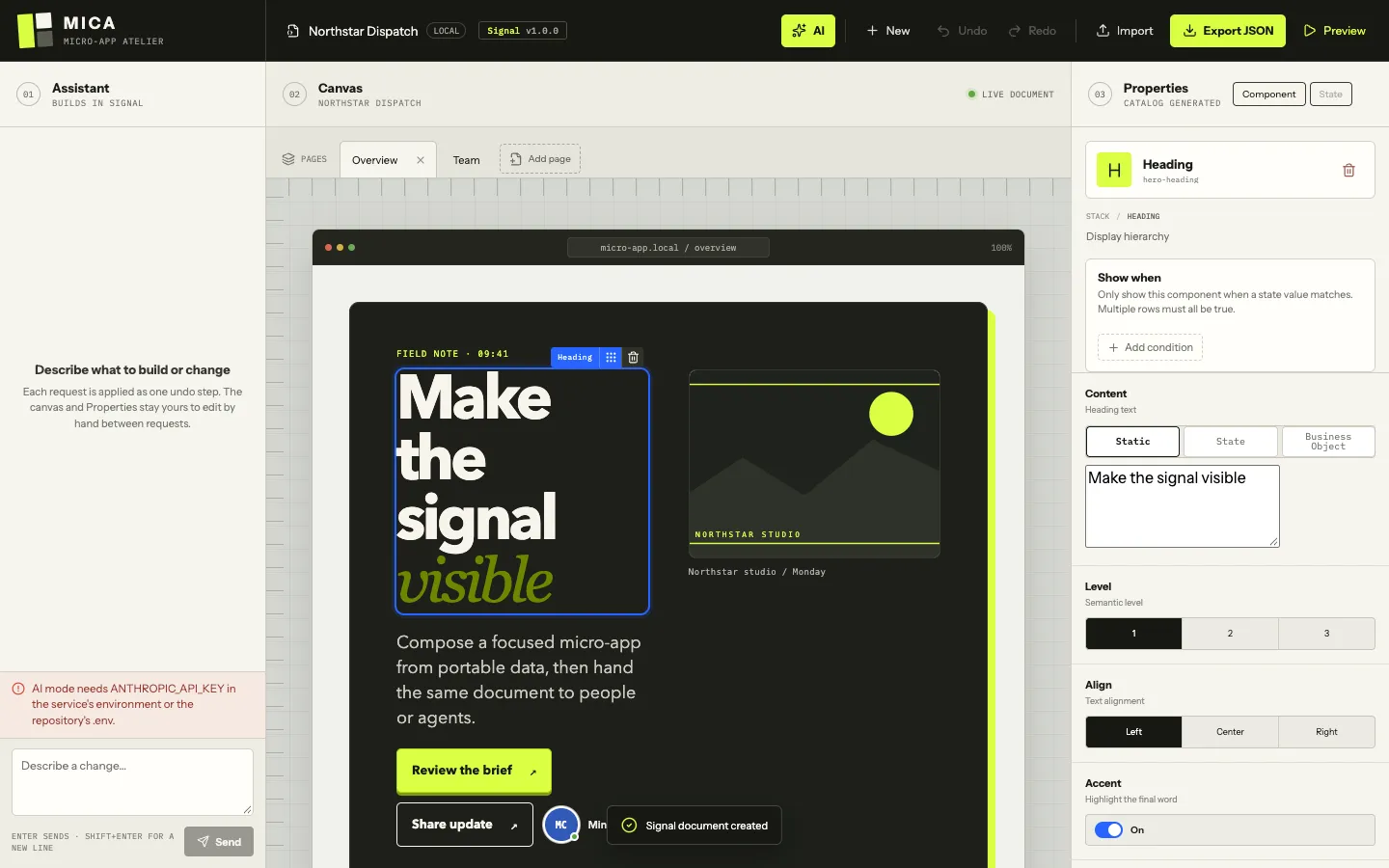
The designer asks the service again each time the pack picker opens (at start and on New), each time you open the panel, and after a request the service turned away for its key or its budget, so the panel and Describe it instead recover once the reason clears.
Limits and cost
Section titled “Limits and cost”Every request runs the Claude model through the service’s API key, and costs money. In Mica’s evaluation, a request on a small app cost about $0.07 on average. Larger documents and longer conversations cost more.
The service holds its spending to a daily cap, $5 by default, and turns requests away before the cap could be passed, which happens a little before the whole amount is spent. Each request also has limits on how many steps the assistant may take. A conversation that grows too long for one request is turned away with a message asking you to start a new one.
The person running the service sets the cap, the model and the limits; Run AI mode locally explains each one, how caching keeps follow-ups cheaper, and how a stopped request is booked.